
How to use ShiftDesk
Every button and every feature, step by step. Start with the basics, which are all in Free, then see what Pro and Team add.
1 Getting started
Install ShiftDesk and find your way around
Download and open
- Download ShiftDesk for Windows, macOS or Linux from the download section of this site. Each is one small file.
- Windows: open
ShiftDesk.exe. It runs straight away and offers to Install: Start menu and desktop shortcuts, starting with Windows in the tray, and updates by itself. No administrator is needed. - macOS: open the downloaded file and choose Move when ShiftDesk offers to go to the Applications folder, so it stays up to date and keeps the permissions you give it.
- Linux: allow the AppImage to run as a program (file properties, or
chmod +x), then open it. - Read the licence agreement and choose I accept. ShiftDesk asks only once.
- On a Mac, the home page shows Permissions needed so others can connect. Choose Allow or Settings next to Screen Recording and Accessibility, switch ShiftDesk on there, then Restart ShiftDesk. Without them, others cannot see or control the Mac; you can still connect to other computers.
ShiftDesk updates itself. New versions are signed, download in the background and are installed only when no session is running.
The home page
Everything starts here: connecting to another computer, letting someone connect to this one, and the computers you use often.
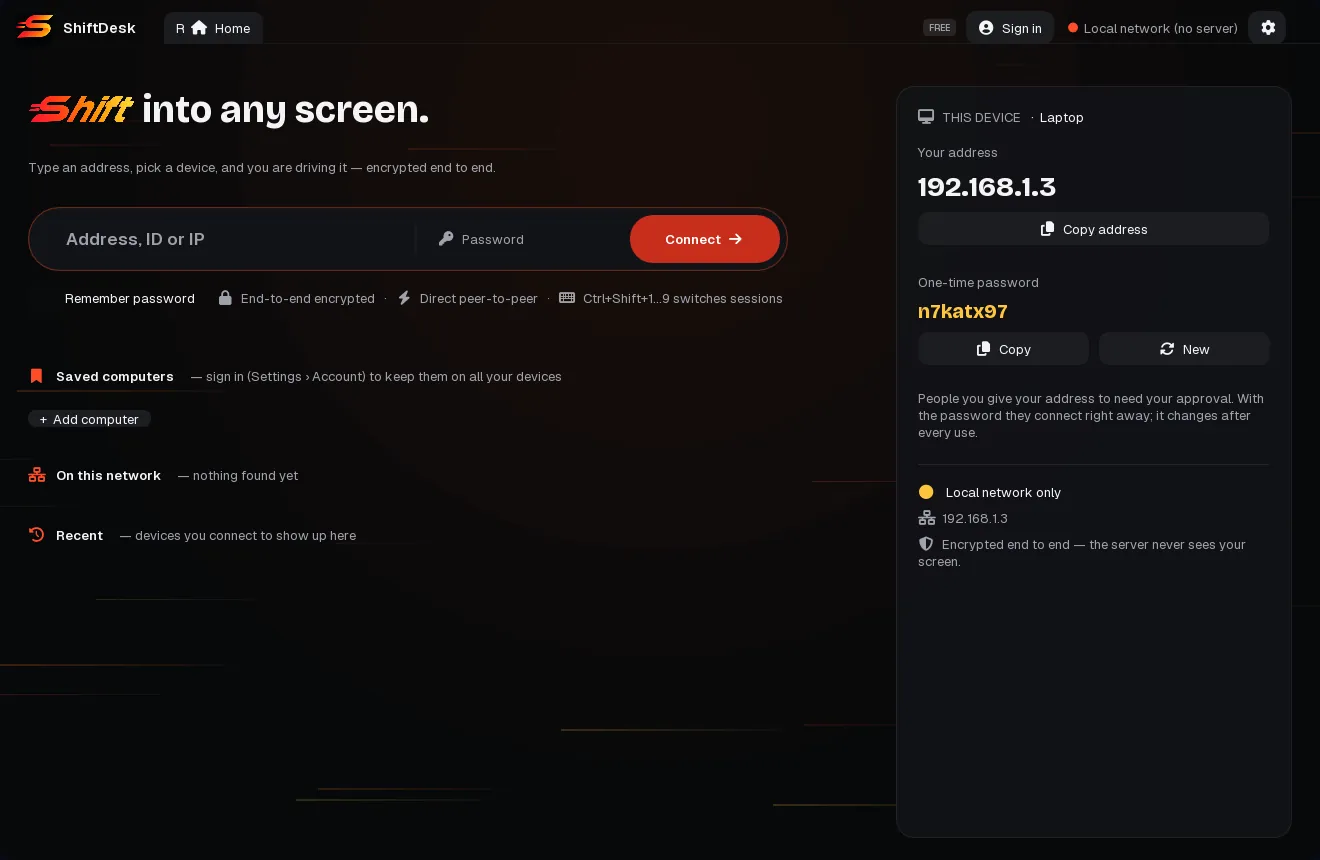
- Address, ID or IP: the computer you want to reach. Its 9-digit ShiftDesk address, or its IP address on your local network.
- Password (optional): the other computer's one-time or permanent password. With it you get in at once, without waiting for approval.
- Connect: starts the connection. Enter does the same.
- Remember password: keeps the password on this computer, encrypted, so next time it connects without asking.
- Your address: what others type to reach this computer. Copy address puts it on the clipboard.
- One-time password: give it to someone you trust and they connect without your approval. It changes after every use. Copy copies it, New makes another one.
- Saved computers: computers you saved, with or without their password. Add computer saves a new one.
- On this network: ShiftDesk computers on your local network, found by themselves. Click one to connect directly.
- Recent: the computers you connected to lately.
- Tabs: Home and one tab for each open session. The number on a tab is its shortcut: Ctrl+Alt+Shift+1…9.
- Settings. Next to it: your plan, Sign in, and the connection state (Online, or Local network only when there is no internet).
2 Free
Everything you can do on Free
Free is for personal use and has the whole remote desktop. There is no time limit on your own computers and on your local network. You can help up to 5 other computers a month with no time limit; after that, sessions with new computers last 10 minutes and you can reconnect right away. Free also gives you 3 devices on your account, one connection at a time, and mouse & keyboard sharing between 2 computers. Game mode on Free lasts 10 minutes a session, on any computer; it is unlimited on Pro.
Connect to another computer
- Ask the other person for the address under Your address on their ShiftDesk.
- Type it in Address, ID or IP and press Connect.
- If you have their password, type it in Password first: you are in at once. Otherwise the other side is asked to accept, and you wait on the screen below.
- Check that the security code is the same on both screens (read it out on the phone or in a message). The same code proves that nobody is in between.
- When they accept, their screen appears. A computer on your local network is found under On this network: one click connects, even without internet.
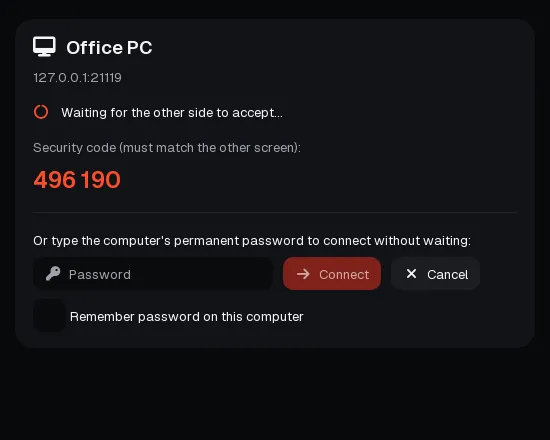
- Waiting for the other side to accept…: the request is on their screen.
- Security code: must match the code on the other screen.
- Password and Connect: type the password shown on the other computer (or its permanent password) to get in without waiting. Cancel stops trying.
- Remember password on this computer: next time this computer goes in without asking.
When a connection does not work
If the computer is off, asleep or the address is wrong, the tab says why and offers three buttons.
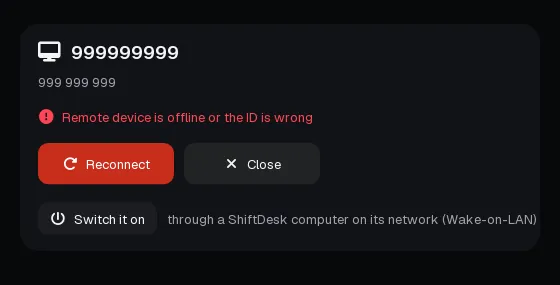
- What happened, for example Remote device is offline or the ID is wrong.
- Reconnect tries again; Close closes the tab.
- Switch it on: wakes the computer through another ShiftDesk computer on its network (see Wake a computer).
Let someone connect to this computer
- Give the person your address (Copy address on the home page).
- When they connect, a Connection request appears with their computer's name and address.
- Compare the security code with the one on their screen.
- Untick what they should not do. Without Mouse and keyboard control they can only watch.
- Choose Accept, or Decline.
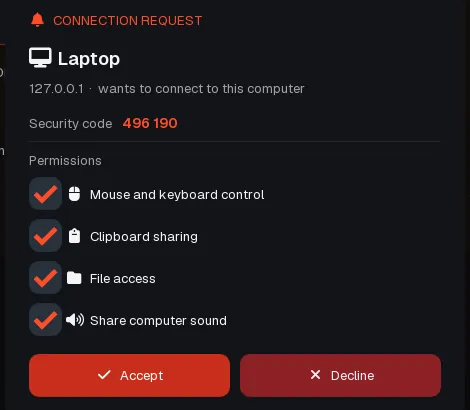
- Who is asking: the name and address of their computer. An AI assistant is shown as AI agent (MCP).
- Security code: must match the code on their screen.
- Permissions: Mouse and keyboard control, Clipboard sharing, File access and Share computer sound. Each one can be changed later during the session.
- Accept lets them in with the ticked permissions.
- Decline turns them away.
Someone who types your one-time password gets in without this request. The password changes after every use, so it works once.
While someone is connected
The home page lists everyone connected to this computer, and a small panel stays on the screen while a session runs. You stay in charge the whole time.
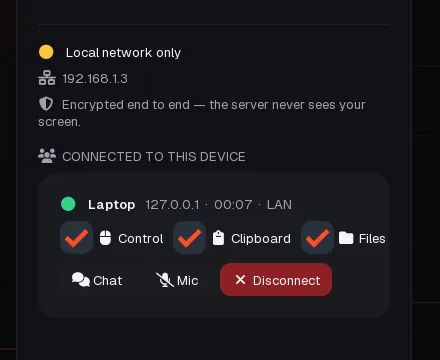
- Connected to this device: everyone who is in now.
- Their computer, its address, how long they have been in, and the route (LAN on your local network).
- Control, Clipboard, Files (and Sound): untick one to take it away at once, tick it to give it back.
- Chat opens the chat, Mic talks to them, Disconnect ends the session.
In a session: the toolbar
The remote screen fills the window, and the toolbar sits on top of it. Hover over any button to see what it does.
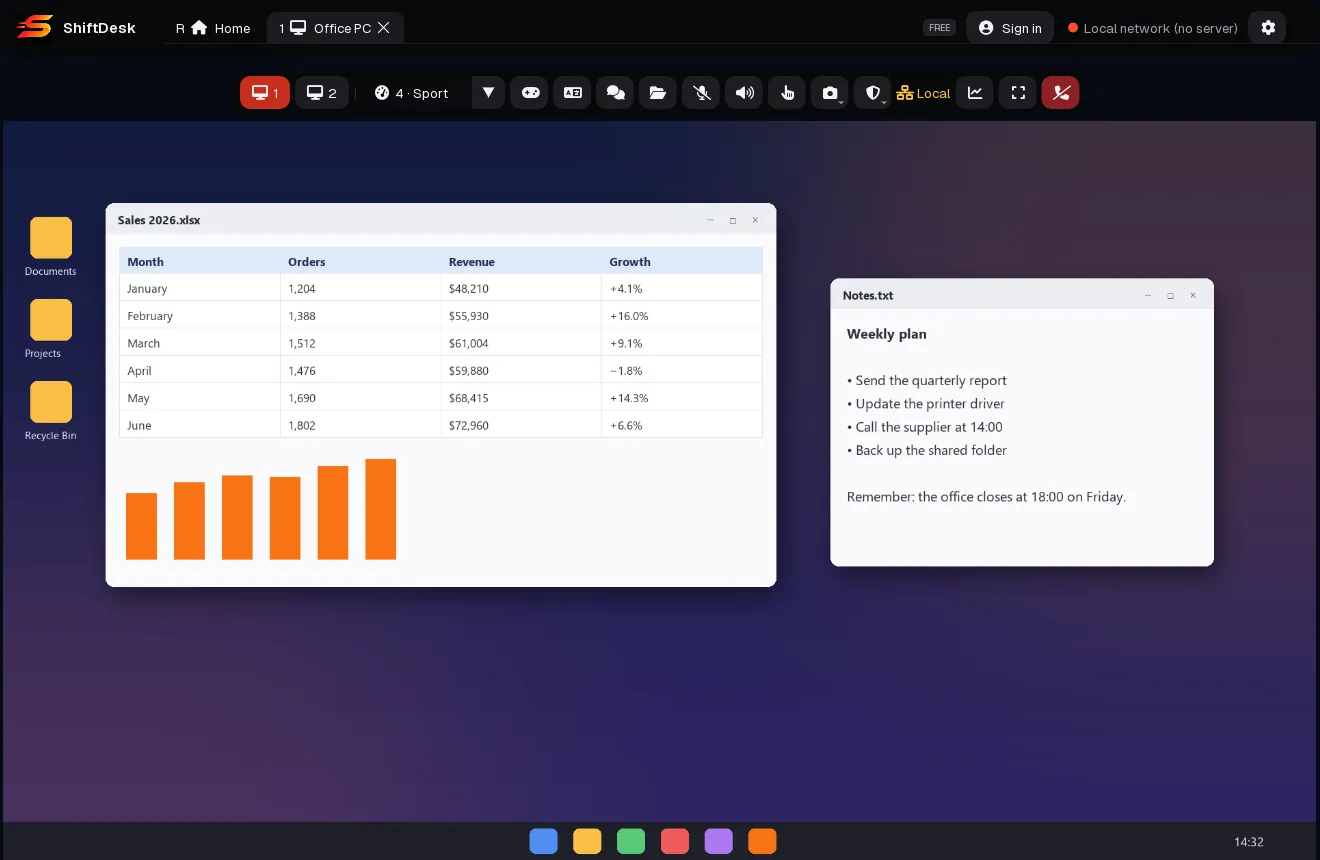

- Screens: one button for each monitor of the remote computer. Click one to see it.
- Picture: the gear (such as 4 · Sport) and the menu of resolution, frame rate and bandwidth. See Picture and gears.
- Game mode: locks the mouse in the window and sends raw movement, for games. Shift Shift (Ctrl+Shift+G) turns it on and off.
- Keyboard: 1:1 sends your keys and the remote computer's layout decides the letters. Translate types the characters your own layout makes, so a Turkish Q keyboard works on an English Mac.
- Chat: a small chat window that stays on top while you work. Messages are end-to-end encrypted and stay in this session.
- File transfer: both disks side by side. See Files and clipboard.
- Microphone: talk to the other side; click again to mute.
- Sound: play or mute the remote computer's sound.
- Show keys & clicks: a ring where you click and the keys you press appear on the remote screen. Handy for teaching and recordings.
- Record or screenshot. See Record and screenshot.
- Remote computer: clipboard, Ctrl+Alt+Del, lock and privacy. See Remote computer menu.
- Route: Local means a direct connection on your local network, without the ShiftDesk server. The globe next to it switches to the internet route. Over the internet, a network button appears when the computer is also on your local network: it switches to the faster local route.
- Connection stats. See Connection stats.
- Full screen: Ctrl+Shift+F. In full screen the toolbar hides; point at the small ShiftDesk tab at the top centre to bring it back.
- Disconnect: ends the session.
- View only appears next to the toolbar when the other side has not allowed mouse and keyboard control.
- REC and a timer show while you record.
- On Free, a stopwatch shows the minutes left when the 10-minute limit applies (from the 6th different computer you help in a month). Reconnect at any time, or click it to try Pro.
- One pattern for all of ShiftDesk's shortcuts: Ctrl+Shift (the Control key on a Mac too) with F full screen, G lock the mouse, M the top menu (also in full screen and in game mode), 1…9 the remote computer's screens and 0 home. Add Alt (Option on a Mac) for the open sessions: Ctrl+Alt+Shift+1…9. Shift pressed twice also locks and frees the mouse. Every other key goes to the remote computer as it is. You can change them in Settings › Shortcuts.
Picture and gears
Click the gear on the toolbar to choose how the remote screen is sent. A gear sets everything at once; or pick resolution, frame rate and bandwidth yourself.
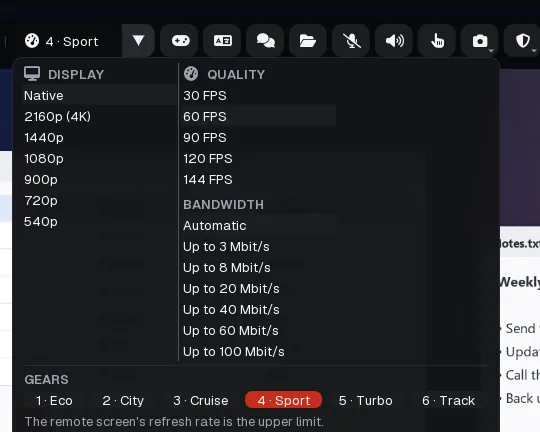
- The gear in use. Click it to open the menu.
- Display: the resolution. Automatic sends the picture at the size your window shows it, so it is sharp at any screen size; Native is the remote screen's own, and fixed sizes go down to 540p.
- Quality: frames per second, from 30 to 144 FPS.
- Bandwidth: Automatic follows your network; or set a ceiling from 3 to 250 Mbit/s.
- Gears: six ready-made settings, explained below.
| Gear | Picture | Best for |
|---|---|---|
| 1 · Auto | Fits the window · 60 FPS · automatic | Everything: finds the best picture by itself (the default) |
| 2 · Eco | 720p · 30 FPS · ~3 Mbit/s | Mobile data, weak links |
| 3 · City | 1080p · 30 FPS · ~8 Mbit/s | Office work, low bandwidth |
| 4 · Sport | Native · 60 FPS · automatic | Crisp text, smooth motion |
| 5 · Turbo | Native · 60 FPS · ~100 Mbit/s | Design and video |
| 6 · Track | 1080p · 120 FPS · ~40 Mbit/s | Gaming, lowest latency |
The remote screen's refresh rate is the upper limit. A lower resolution needs less bandwidth and gives lower latency. The gear new sessions start with is set in Settings › Remote control.
Files and clipboard
- Click File transfer on the toolbar. This computer is on the left, the remote computer on the right.
- Double-click a folder to open it; the arrow next to the path goes up one folder.
- Select files and press Send (to the remote computer) or Download (to this computer). Refresh reads the folders again.
- Or simply drag files from your desktop onto the ShiftDesk window.
- Transfers shows each file's progress. Every file is checked when it arrives.
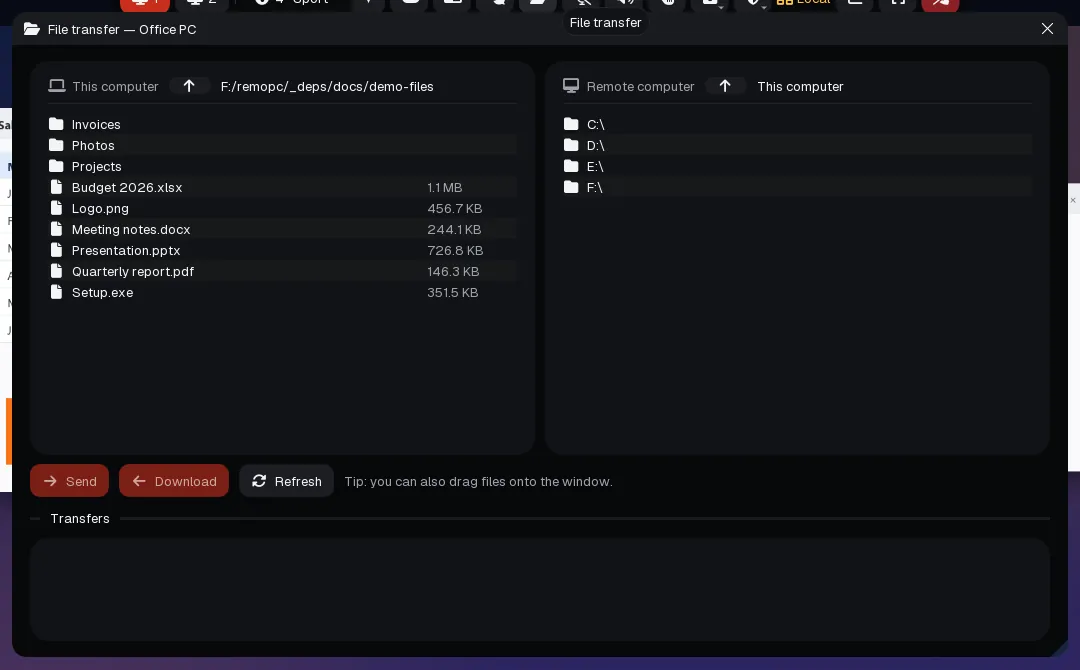
- This computer and the folder you are in.
- Remote computer: its disks and folders.
- Send, Download and Refresh.
- Transfers: done, queued or failed.
The clipboard works too: with Sync clipboards on, copy text, images, files or whole folders on one computer and paste them on the other. A bar shows the progress. For copied files over 2 GB, use File transfer. Files you receive go to the folder chosen in Settings › General › Received files.
Remote computer menu
The shield button on the toolbar holds what you do to the remote computer itself.
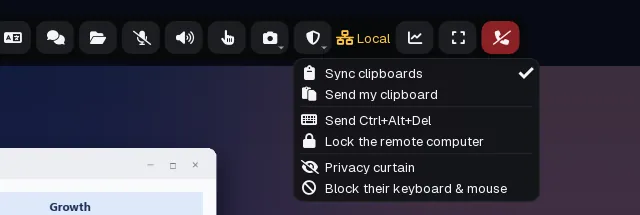
- Sync clipboards: on, whatever is copied on either computer can be pasted on the other; off, each keeps its own. Send my clipboard sends what you copied here once.
- Send Ctrl+Alt+Del: reaches the Windows security screen. It needs Start before sign-in on the remote computer (Settings › General). Lock the remote computer locks it at once.
- Privacy curtain and Block their keyboard & mouse: Pro tools, see Pro.
Record and screenshot
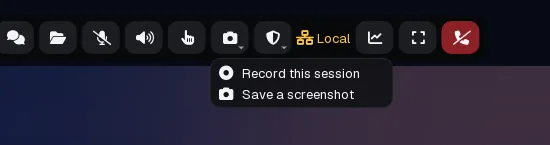
- Record this session: records the remote screen as an MP4 in your Videos folder. REC shows while it runs; open the menu again and choose Stop recording.
- Save a screenshot: a PNG next to the recordings.
Turn on Show keys & clicks before recording a tutorial, so viewers see where you click and what you type.
Connection stats
The chart button shows how the connection is doing, live, in the corner of the screen.
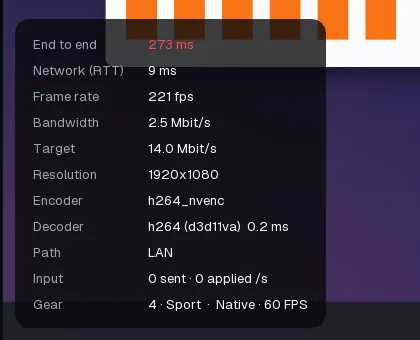
- End to end: the delay from the remote screen to yours. Network (RTT): the round trip of the network alone.
- Frame rate, Bandwidth and Target: pictures per second, the data used now, and what the gear aims for.
- Resolution, Encoder and Decoder: the size of the picture, and the graphics hardware that packs and unpacks it.
- Path: LAN on your local network, P2P directly over the internet. Input: mouse and keyboard events per second. Gear: the picture settings in use.
Reach your own computers without anyone there
For your own computers, set a permanent password once. Then you connect at any time, without anyone accepting.
- On the computer you want to reach, open Settings › Access.
- Turn on Allow access with a permanent password and type a password of at least 8 characters. Choose Save.
- From another computer, type its address and that password, tick Remember password, and connect.
- To have it come back after a restart, keep Start with Windows on (Settings › General). With Start before sign-in you even reach the sign-in screen after a restart.
- Signed in with the same account on both? Turn on Let my account's devices in without asking instead, and no password is needed.
After a few wrong passwords from the same place, password sign-ins from there are blocked for a while, longer each time. Lock this computer when a session ends (Settings › Access) makes sure the next person needs your password.
Saved computers, recent ones and your network
- Add computer (under Saved computers): type the Address, a Name and, if you like, the Password, then Save. One click connects later.
- Right-click a saved computer to edit or remove it. Signed in, saved computers follow you to every ShiftDesk and to the website; otherwise they stay on this computer, encrypted.
- On this network lists the ShiftDesk computers on your local network. The bookmark saves one to Saved computers; Rename gives it a name you recognise.
- Recent: right-click to Forget saved password or Remove from recent.
- Signed in, My devices shows the computers on your account and whether they are online. Free has room for 3.
- No internet? Computers on the same network still find each other and connect directly. The status then says Local network only; you can also type a computer's local IP address.
Wake a computer that is off or asleep
ShiftDesk can switch on a computer with Wake-on-LAN, through another ShiftDesk computer that is on in the same network. You do not need to be on that network yourself.
- On the computer to be woken, keep Can be switched on from afar on (Settings › Network; it is on by default) and run ShiftDesk once while it is online, so it reports its network card.
- Allow Wake-on-LAN in that computer's BIOS or network card settings.
- Leave another ShiftDesk computer on in the same network: a PC, a laptop or a small always-on computer.
- When a connection finds the computer offline, choose Switch it on. The wake-up is sent, and ShiftDesk connects again by itself when the computer is up (it can take a minute).
One mouse and keyboard for the computers on your desk
Mouse & keyboard sharing moves your pointer from one computer's screen to the next one's, like a single big desktop. No screen is sent; the keyboard and the clipboard follow the pointer. Free shares between 2 computers, in any mix of Windows, macOS and Linux.
- Open ShiftDesk on both computers, on the same local network.
- On the computer whose mouse you want to use, find the other one under On this network and tick Share mouse & keyboard.
- The other computer shows Mouse & keyboard sharing with a security code. Check that it matches and choose Allow. This is remembered: next time it comes in by itself.
- Choose Arrange the screens and drag the computers so the screens sit the way they stand on your desk. Choose Done.
- Push the pointer across the edge where the screens meet. Press Ctrl twice (Command on a Mac) to jump to the next computer and around.
- Push needed: how far the pointer must keep pushing past the edge before it crosses, so touching the edge does not throw it over.
- Never cross while a mouse button is held: no accidental crossing while dragging.
- Sync clipboards: copy on one, paste on the other. Switch off its own mouse and keyboard while it is used from here: for a computer someone else might touch.
- Stop sharing ends it. On the other computer, Settings › Access › Mouse & keyboard from other computers lists the computers allowed in; Forget makes one ask again.
Connect from a browser
- Open getshiftdesk.com in a recent Chrome, Edge or Safari, on a computer, a phone or a tablet. Nothing to install.
- Type the address (and the password, if you have it) in the box at the top and choose Connect.
- Signed in, your computers appear under the box: one click connects.
The browser uses the same end-to-end encryption as the app. The other side approves as usual, or you type the password.
Your account
ShiftDesk works without an account. An account keeps your computers and saved computers everywhere, lets you reach them in one click from any browser, and lets you upgrade.
- In ShiftDesk, open Settings › Account and choose Sign in with browser.
- The browser opens. Continue with Google or Apple, or with your email (a password, or a sign-in link we email you). New here? The account is made in the same step.
- Choose Link device. The app now shows your plan and this computer is linked to the account.
- On your account page: connect from the browser, rename or remove devices, add saved computers, see your plan, and change your password. Signed in with an email link? You can set a password there within 30 minutes without the old one.
ShiftDesk in the tray
Closing the window keeps ShiftDesk running, so people can still reach this computer. Its icon in the tray (the menu bar on a Mac) has Open, Copy address and Quit. When ShiftDesk starts with Windows it waits in the tray; opening it yourself shows the window.
Settings, page by page
Open Settings with the gear at the top right. Pick a page on the left; changes apply when you choose Save.
General
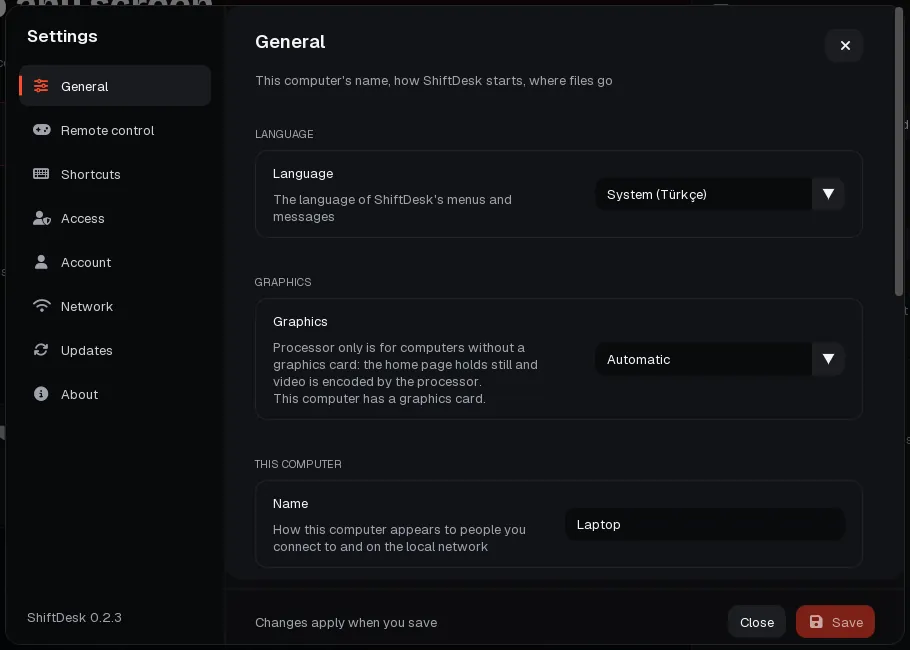
- Language: the language of ShiftDesk's menus and messages. System follows your computer.
- Graphics: Automatic, Graphics card (GPU) or Processor only (CPU). Processor only is for computers without a graphics card: the home page holds still and video is encoded by the processor.
- Name: how this computer appears to the people you connect to and on the local network.
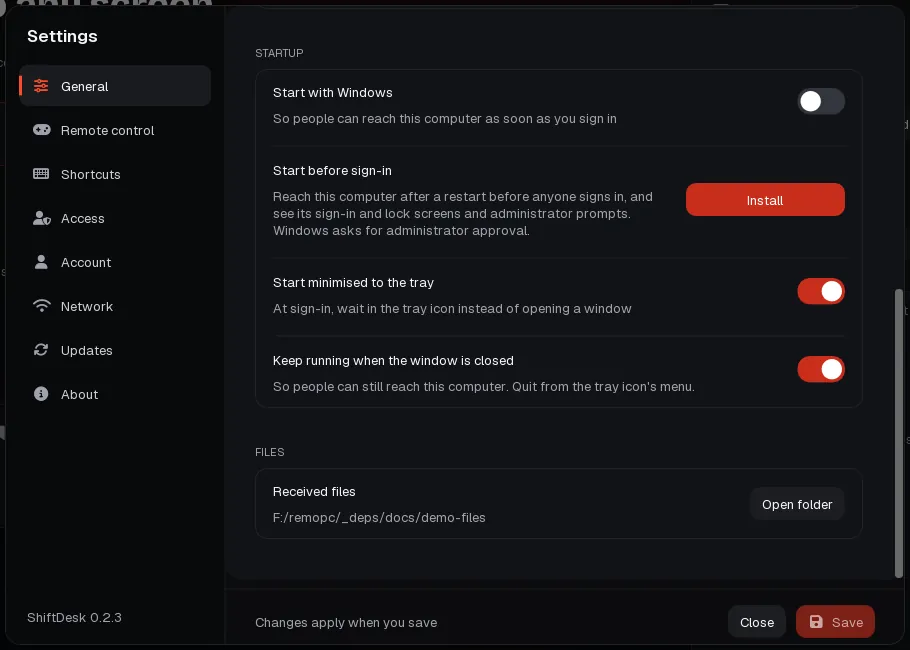
- Start with Windows (or with your Mac or Linux session): people can reach this computer as soon as you sign in.
- Start before sign-in (Windows): installs the ShiftDesk service. Then you can reach this computer after a restart before anyone signs in, and see and use its sign-in and lock screens and administrator (UAC) prompts. Install asks Windows for administrator approval; Remove takes it away. It needs unattended access (a permanent password) to let anyone in.
- Start minimised to the tray: at sign-in, ShiftDesk waits in the tray instead of opening a window.
- Keep running when the window is closed: people can still reach this computer. Quit from the tray icon's menu.
- Received files: where files you receive are saved. Open folder shows them.
Remote control
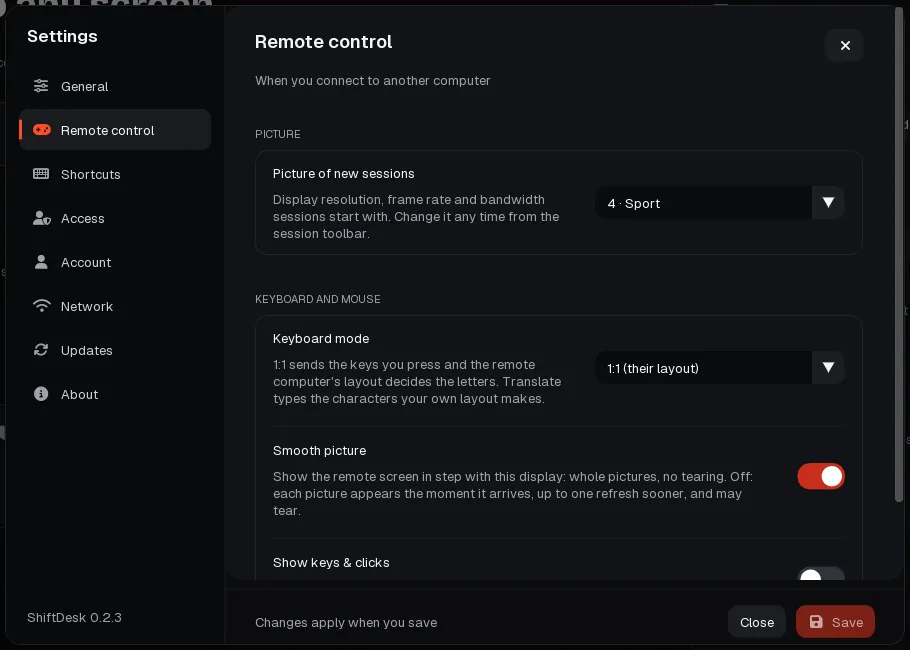
- Picture of new sessions: the gear sessions start with. You can change it any time from the toolbar.
- Keyboard mode: 1:1 (their layout) or Translate (my layout), as on the toolbar.
- Smooth picture: shows the remote screen in step with your display: whole pictures, no tearing. Off, each picture appears the moment it arrives, up to one refresh sooner, and may tear.
- Show keys & clicks: starts every session with keys and clicks shown on the remote screen.
Shortcuts
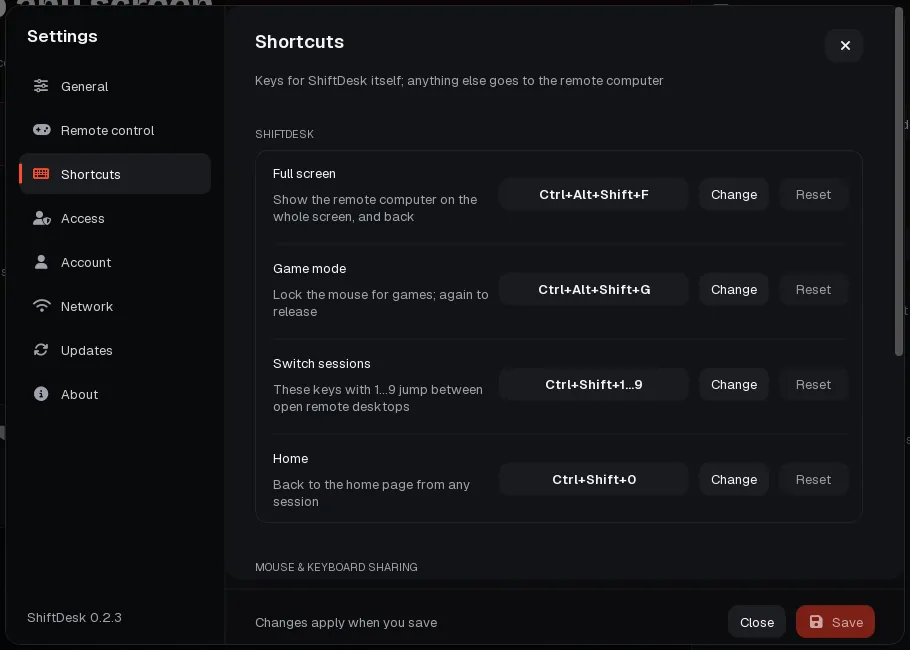
- Full screen, Game mode, Switch sessions and Home: ShiftDesk's own keys. Change and press the new keys; Reset goes back to the original. A warning shows if two use the same keys.
- Next computer (mouse & keyboard sharing): the key that takes the pointer to the next computer and around. Pressed twice or Held down alone, and how quickly or how long.
- Every other key and shortcut goes to the remote computer as it is.
Access
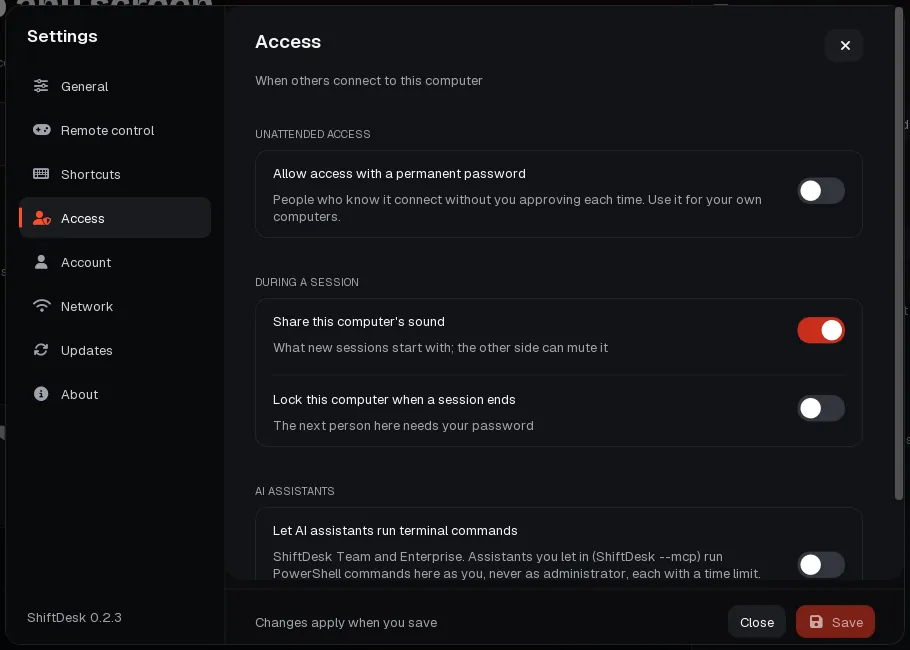
- Allow access with a permanent password: people who know it connect without you approving each time. Use it for your own computers.
- Let my account's devices in without asking (shown when you are signed in): browsers and devices signed in to the same account connect without the approval prompt.
- Share this computer's sound: what new sessions start with; the other side can mute it.
- Lock this computer when a session ends: the next person here needs your password.
- Let AI assistants run terminal commands: Team and Enterprise, see Team.
- Mouse & keyboard from other computers and Saved passwords (further down): the computers allowed to share their mouse with this one, and the passwords this computer remembers. Forget or Forget all clears them.
Account
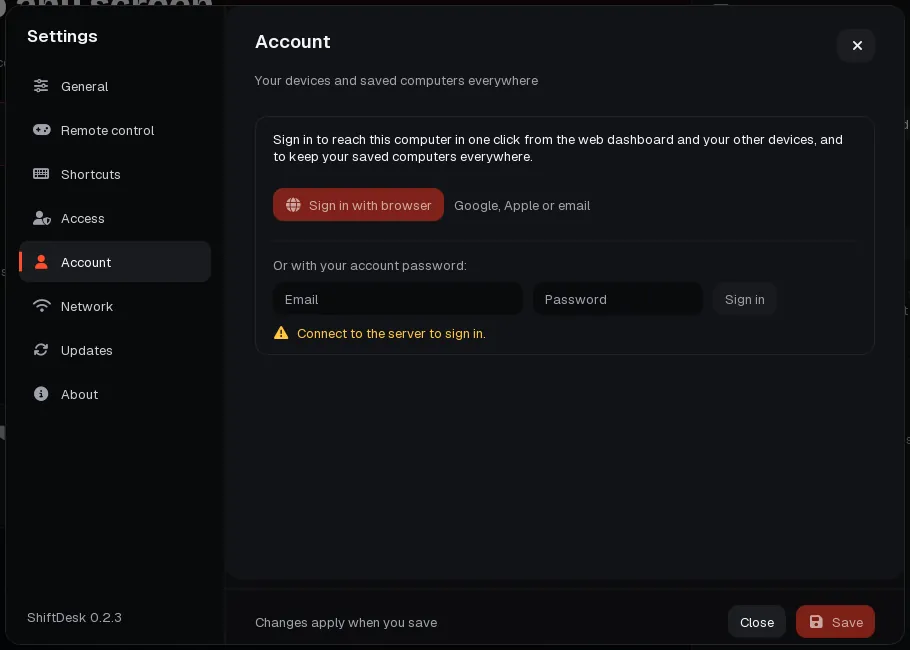
- Sign in with browser (Google, Apple or email), or type your email and account password. See Your account.
- Signed in, the page shows your plan, Open my account and Sign out. Signing out takes the account's computers off this computer.
Network
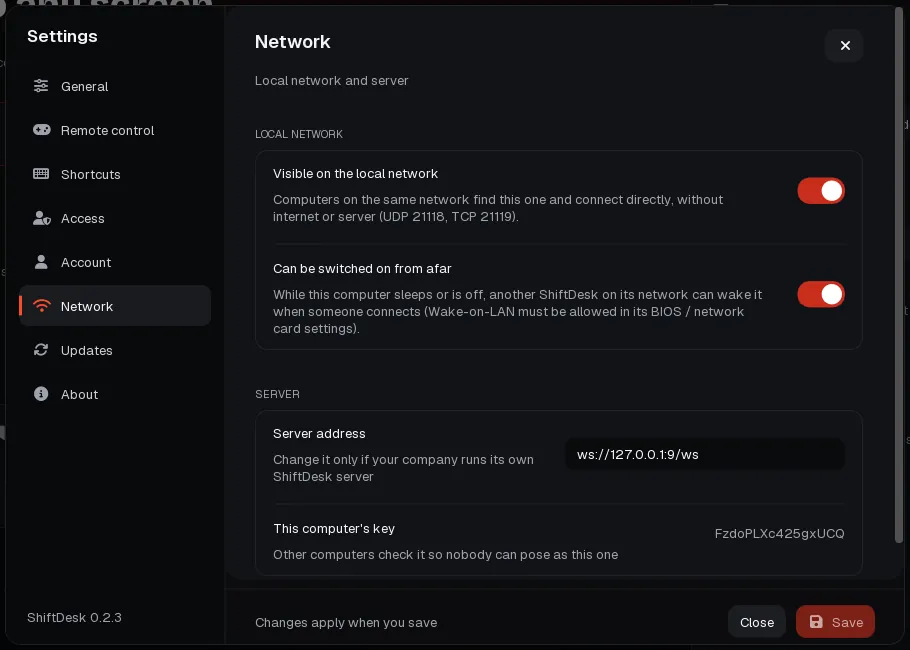
- Visible on the local network: computers on the same network find this one and connect directly, without internet or server (UDP 21118, TCP 21119).
- Can be switched on from afar: while this computer sleeps or is off, another ShiftDesk on its network can wake it when someone connects.
- Server address: change it only if your company runs its own ShiftDesk server.
- This computer's key: other computers check it, so nobody can pose as this one.
Updates
- The version you have, Check now, and What's new in the latest version.
- Install updates automatically: new versions download in the background, signed by ShiftDesk, and go in when no session is running. It takes a few seconds and ShiftDesk starts again by itself. Restart to update does it now.
- Installation: Install puts ShiftDesk in its place and adds it to the menus; Uninstall… removes the program and its shortcuts, and can also delete settings, saved passwords and this computer's address.
About
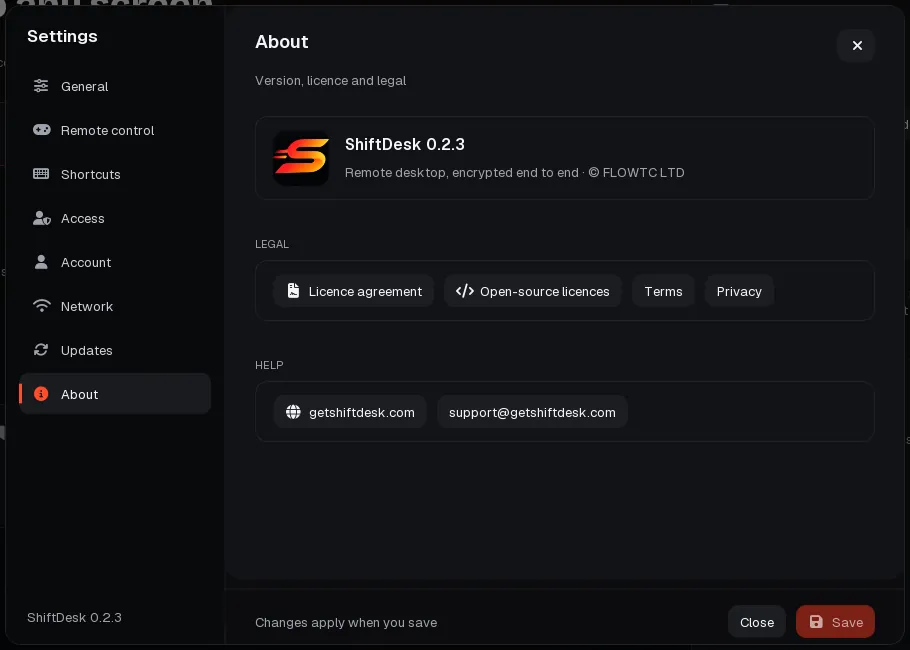
- The version, the Licence agreement, the Open-source licences, the Terms and the Privacy policy, this website and [email protected].
3 Pro
What Pro adds, and how to use it
Pro is for work: help any number of computers with no time limit, and get the tools support teams need. Everything in Free stays.
Get Pro
- Sign in on your account page.
- Choose Try Pro free for 7 days (no card needed), or Upgrade to pay monthly or yearly (two months free). Cancel online any time with Manage billing.
- Sign in to ShiftDesk with the same account (Settings › Account). The badge at the top changes to PRO.
Help anyone, with no time limit
Commercial use is allowed and no session ends after 10 minutes, however many computers you help. When either side of a connection has a paid plan, no limit applies.
Privacy curtain and input block
- Privacy curtain: blacks out the remote monitors so people near that computer cannot watch, while you still see everything. On Windows 10 (version 2004) or later.
- Block their keyboard & mouse: nobody at the remote computer can use it while you work. Ctrl+Alt+Del on that computer still escapes.
Open them from the shield button on the toolbar. Only you, the helper, need Pro. These tools are paid on purpose: blacking out a screen and locking a mouse is exactly what support scammers want, and a payment method keeps them away.
Mouse & keyboard sharing across 3 or more computers
Tick Share mouse & keyboard on as many computers under On this network as you have, and arrange all their screens in one layout. Ctrl twice goes on to the next computer and around.
More people, more connections, more devices
- Up to 4 people can be in the same computer at once, each on their own Pro or Team plan (or on a computer whose own account is paid). Each one is listed under Connected to this device.
- 3 connections at once: open sessions to three computers and switch with Ctrl+Alt+Shift+1…3.
- 50 devices on your account.
Let an AI assistant use a computer (MCP)
Claude and other assistants that speak MCP can connect through ShiftDesk, take screenshots, and use the mouse and keyboard of a computer, with your permission.
- Install ShiftDesk on the computer where the assistant runs and open it once to accept the licence.
- Add ShiftDesk as an MCP server. In Claude Code:
claude mcp add shiftdesk -- "C:\Program Files\ShiftDesk\ShiftDesk.exe" --mcp. In Claude Desktop, add a server with the command of ShiftDesk and the argument--mcp. - The first time the assistant connects, a browser window opens: sign in to your paid account and choose Link device.
- Ask the assistant to connect to an address. The person at that computer sees AI agent (MCP) in the request and must accept, unless the assistant has the computer's password.
4 Team
Run ShiftDesk for a team
Team has everything in Pro, for you and up to 5 people you invite: 500 devices, 20 connections at once, computers given to members without passwords, installation on many computers, AI terminal access and priority email support.
Invite your team
- On your account page, find Team.
- Type a colleague's email and choose Invite. Only an invitation by email can add someone.
- They get an email and join by accepting it. If they have no account yet, it is made for that email when they join.
- Members use your Team plan and see your saved computers, without their passwords. You see their devices.
- Remove takes someone out of the team; their account goes back to its own plan. A member can also choose Leave team.
Give computers to members: in without a password
A member you give a computer to connects to it without knowing its password, and the computer lets them in by itself.
- The computer must be yours: signed in to ShiftDesk with your account, or installed with one of your install keys (below).
- On that computer, Let my account's devices in without asking must be on (Settings › Access). Computers installed with a key have it on.
- On your account page, under My devices, find the computer and click a member's name next to Give to:.
- The member sees it under Computers your team gave you, in the app and on the website, and connects with one click. The computer accepts by itself, so nobody needs to be there.
- Click the name again to take it back. Someone removed from the team loses every computer you gave them at once.
Install on many computers
- On your account page, under Install on many computers, give the key a name if you like (Office, Lab…) and choose Make an install key.
- Copy the key now: it is shown only once. Anyone with it can add computers to your account, so keep it in your deployment tool only.
- On each computer, as an administrator or from your deployment tool (Intune, Group Policy, a script), run:
ShiftDesk.exe --deploy --key <key>
Add--unattended <password>for a permanent password and--name <name>for the computer's name. - ShiftDesk is installed for the whole computer, with its Windows service, and the computer joins your account as a managed by team computer. Only you, the administrator, can remove it.
- Give the new computers to members, as above. Remove a key when you no longer need it: computers already installed stay.
Reach computers before anyone signs in
Computers installed with a key already run the ShiftDesk service. On others, turn on Start before sign-in in Settings › General. After a restart you then reach the sign-in screen, the lock screen and administrator prompts, and Send Ctrl+Alt+Del works.
AI terminal access
- On the computer, turn on Settings › Access › Let AI assistants run terminal commands.
- An assistant connected through ShiftDesk's MCP connector can now run PowerShell (Windows) or zsh (macOS) commands there as the signed-in user, never as administrator.
- It can join in terminal-only mode next to a normal session, so whoever works on that computer keeps the screen, mouse and keyboard.
- Every command is listed under the session on that computer. Untick Terminal there, or turn the setting off, to stop it.
Room for the whole team
500 devices on the account and 20 connections at once. Need more? Write to [email protected] about Enterprise.
Still stuck?
Write to [email protected]. Tell us your ShiftDesk version (Settings › About) and what you see.